
2.4.1 - About Object Properties
Every AutoCAD object, such as a line or a circle, has properties.
Object properties which include color, layer, linetype, lineweight, transparency, thickness and plot style, control the appearance and behavior of objects and are used to organize a drawing.
You can control how the objects are displayed in your drawing and plotted by changing their properties.
You can change the properties of an object in your drawing by using the Properties palette (Fig.2.4.1.1) or the Quick Properties palette (Fig.2.4.1.4).
You can copy some or all the properties of an object to other objects using the Match Properties tool (Fig.2.4.1.6).
Some properties such as Color, Linetype, and Layer are common to all objects. Every object has general properties, including its layer, color, linetype, linetype scale, lineweight, transparency, and plot style. In addition, some objects have properties that are specific to their type.
For example, the unique properties of a circle include its radius and area.
When you select an object, its properties or quick properties palette is displayed and lists the selected object's properties. When more than one object is selected, only those properties common to all selected objects are displayed.
When you specify the current properties in a drawing, all newly created objects use those settings automatically. For example, if you set the current layer to Walls, the objects you make will be on the Walls layer.
Use the Properties Palette
The Properties palette (Fig.2.4.1.1) provides a complete list of all property settings of the selected object or set of objects. You can modify any property by specifying a new value.
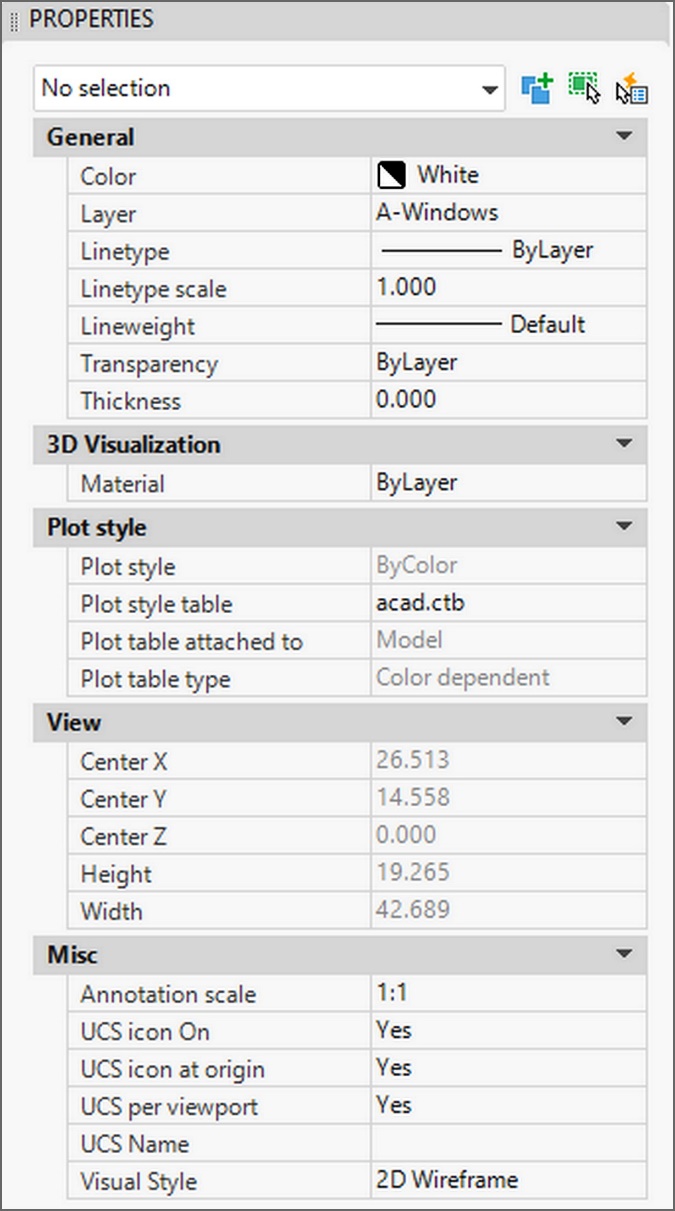
Fig.2.4.1.1 – Properties palette
You can open the Properies palette on Ribbon. To do this:
- Click the Home tab ►View tab ►Palettes panel ► and click the Properties icon (hover on to see)
 . The Object Properties palette will open (Fig.2.4.1.1).
 - With the Properties Palette open, selecting an object will display its properties in the palette (Fig.2.4.1.2).
- With the Properties Palette closed, selecting an object will display its properties in the palette (Fig.2.4.1.2).
- When no object is selected, the Properties palette display only the general properties of the current layer, the name of the plot style table attched to the layer, the view properties, and information about the UCS (Fig.2.4.1.1).
- When an object is selected, the Properties palette display the current settings of the selected object (Fig.2.4.1.2). You notice that properties palette displays the properties of the selected object (a polyline with Thikcness). You can modify any property that can be changed, by specifying a new value.
- When more than one object is selected, the Properties palette display only those properties common to all objects in the selection set.
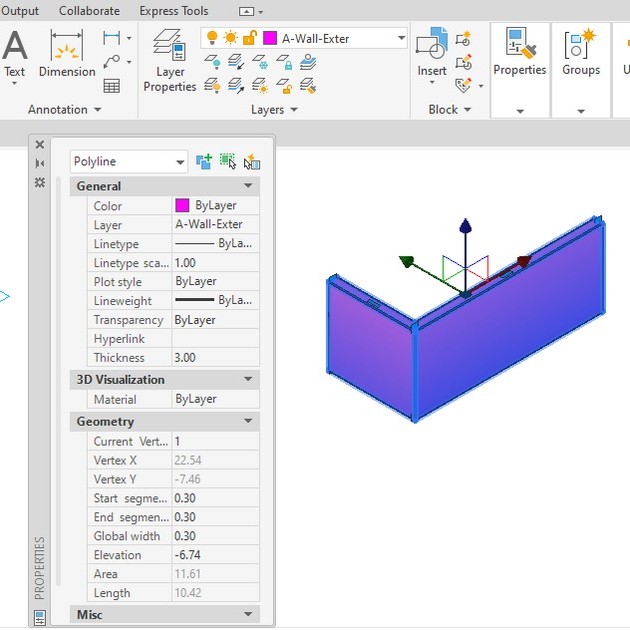
Fig.2.4.1.2 – Object Properties palette
Quick Properties palette
To use the "Quick Properties palette
- On the “Drawing Status Bar” (Fig.2.2.1.1), turn on the icon Quick Properties
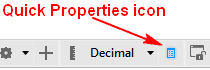
Fig.2.4.1.3 – Properties palette
After this, when you click an object, the Quick Properties palette opens, and you can make changes to its properties (Fig.2.4.1.3).
To customize the properties displayed on the Quick Properties palette, click the Options wheel at its top-right corner, as shown in Fig.2.4.1.4.
The dialog box ‘Customize User Interface (CUI)/Customize’ (Fig.2.4.1.5) will open where you can customize the Quick Properties palette.
You will notice that in the upper left window is selected the “Quick Properties field. “
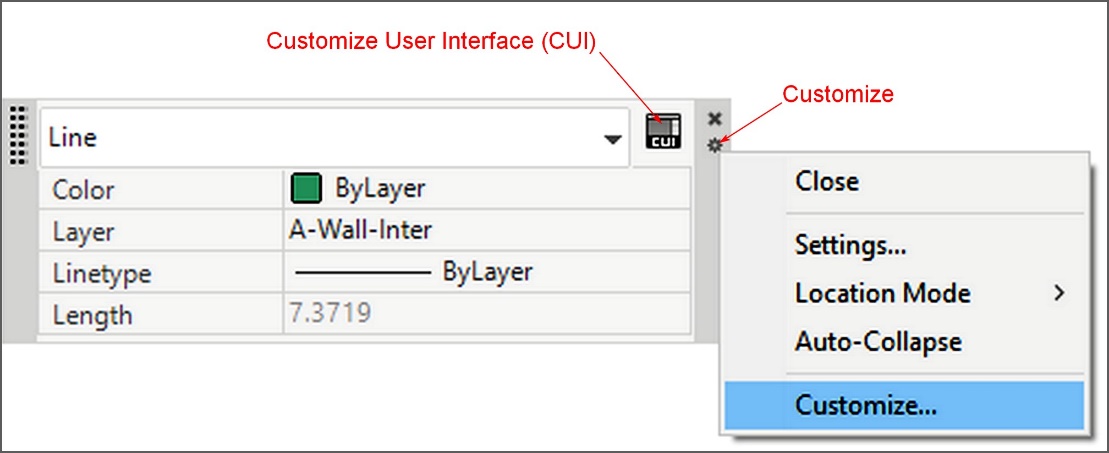
Fig.2.4.1.4 – Quick Properties -Customize
At the right window, on the first panel, the object “Line” is selected, and at the next panel, to the right, the displayed properties on the Quick Properties Palette for the object line are checked (Fig.2.4.1.5).
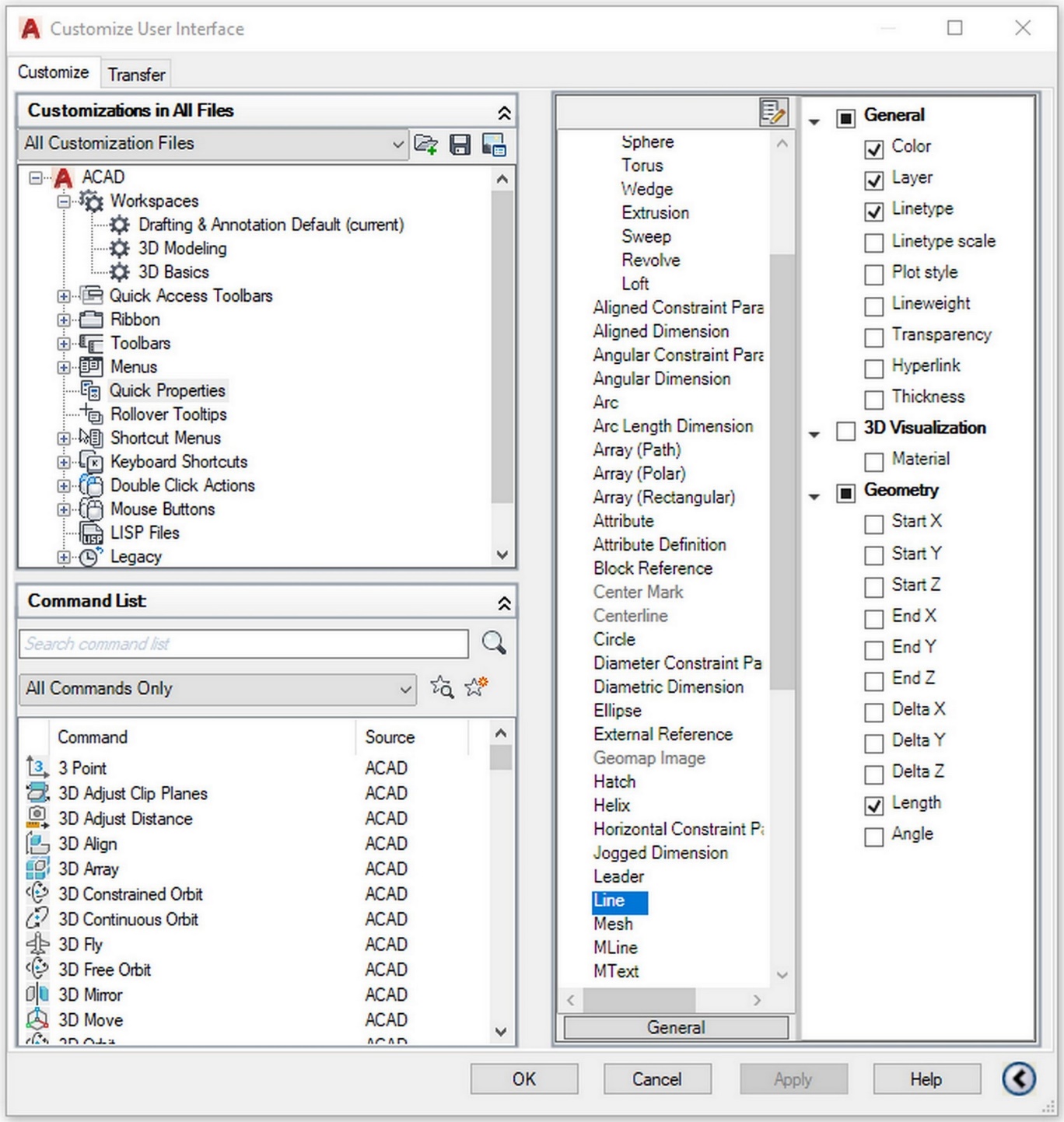
Fig.2.4.1.5 – Customize User Interface (CUI)
Here you can check or uncheck the properties you want to display on the Quick Properties Palette.
Copy Properties Between Objects
You can copy some or all the properties of an object to other objects using the Match Properties tool or enter MATCHPROP in the Command line.
The usual properties that you You can copy are color, layer, linetype, linetype scale, lineweight, transparency, and thickness.
To copy properties from one object to other objects
• Click the Home tab ►Properties panel ► and click the Match Properties icon (Fig. 2.4.1.6).
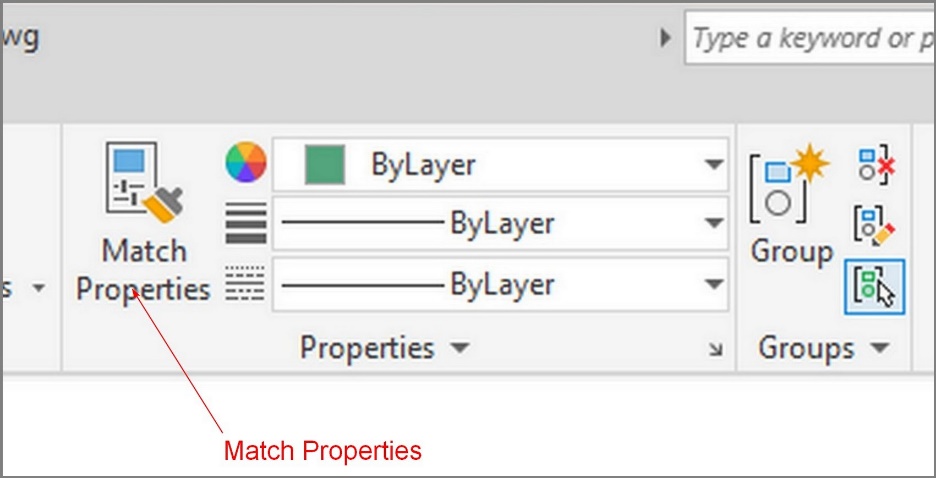
Fig.2.4.1.6 – Ribbon - Match Properties
• Select the source object whose properties you want to copy.
• If you want to control which properties you want to copy, enter s (Settings).
• In the Property Setting dialog box that will open (Fig.2.4.1.7), by default, all properties are ON. Uncheck the properties you don’t want to copy, and click Ok.
• Select the objects to which you want to apply the properties and press Enter.
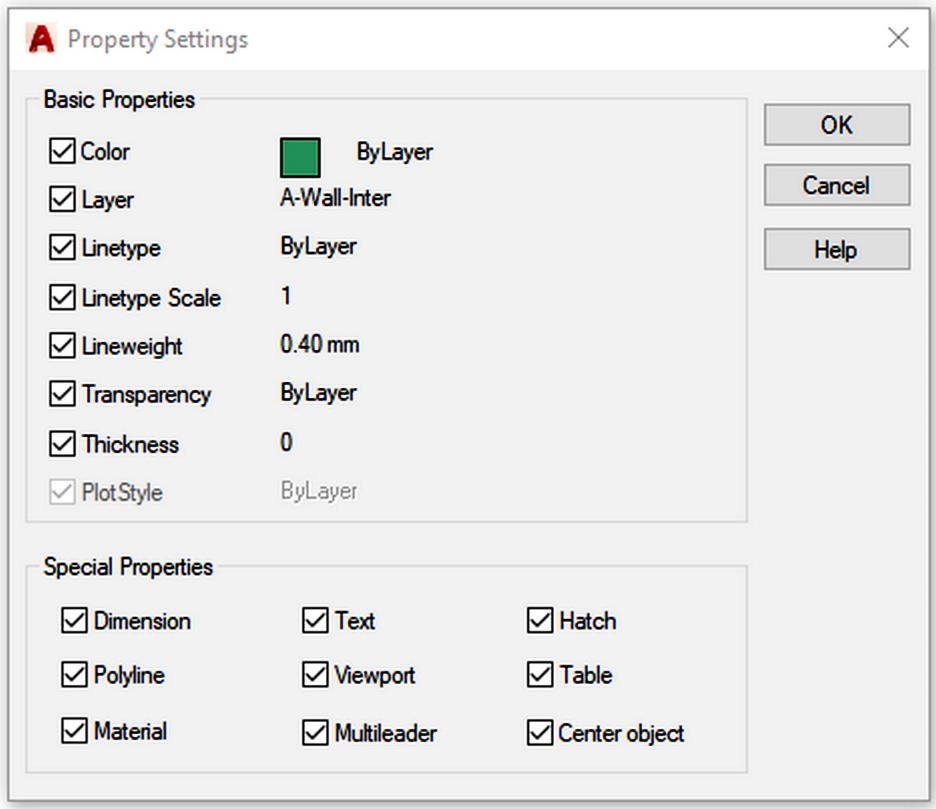
Fig.2.4.1.7 – Ribbon - Utilities - Quick Select